Setting Up Microsoft Authenticator for Multi-Factor Authentication
Guide to Setting Up Microsoft Authenticator for Multi-Factor Authentication
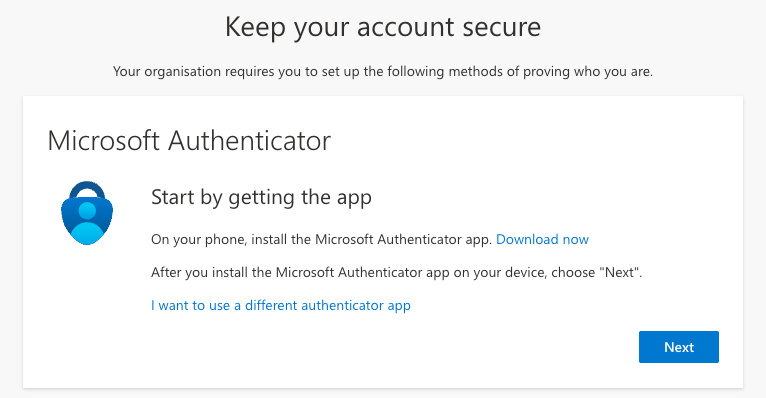
Install the Microsoft Authenticator app from the App Store or the Google Play Store

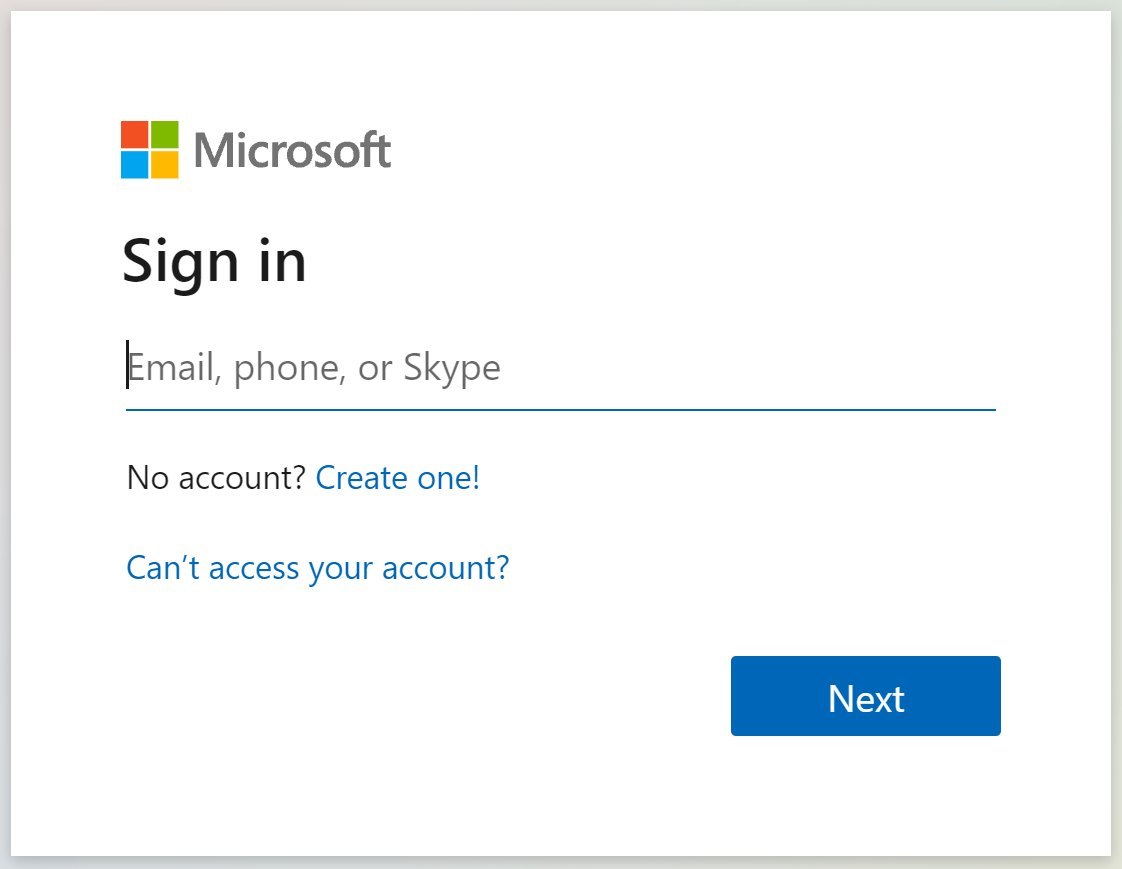
Log in to your Fisher German Microsoft 365 account by visiting portal.office.com.
Navigate to the section for setting up multi-factor authentication and click Next to proceed.
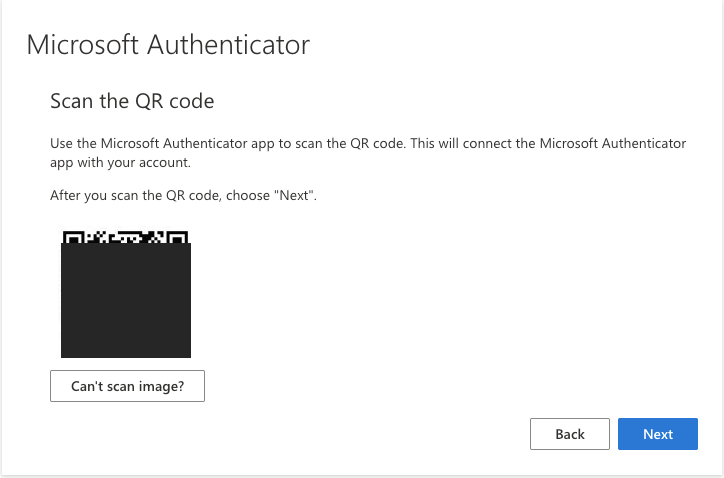
A QR code will be displayed on your screen for scanning. Keep this screen visible.
Ensure that the camera is enabled on your mobile device.
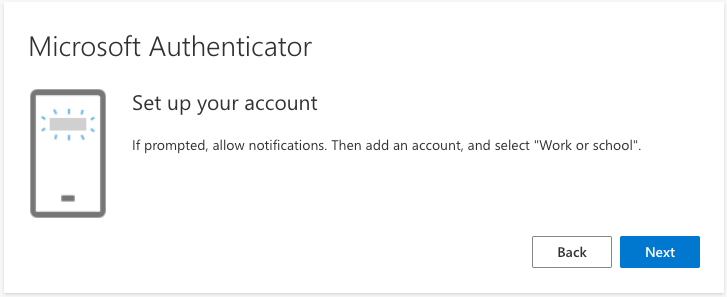
Launch the Microsoft Authenticator app on your phone
Tap the + icon located in the top right corner of the app.

Choose the Work or school account option.
The app will prompt you to scan the QR code displayed on your computer screen. Use your phone's camera to scan the code.

If you are unable to scan the QR code, select the option to manually enter the code. This code can be found directly below the QR code on your computer screen.

After successfully scanning the QR code or entering the code manually, your account will appear in the Microsoft Authenticator app.
On your computer, click Next to continue to the next screen.

To verify the setup, enter the numbers displayed on your screen into the Microsoft Authenticator app when prompted.

Once the correct code is entered, you will see a confirmation message indicating the authentication was successful.

For future logins to your Microsoft 365 account, keep your phone handy. Enter the number generated in Microsoft Authenticator to authenticate your login.

By following these steps, you will have successfully set up multi-factor authentication for your Microsoft 365 account using Microsoft Authenticator.